So, I got obsessed over the past two weeks or so "solving" archive files. This involved trying to extract the resources from video game archive files. Even if I don't care about the result, it was like solving a puzzle to figure out how to get the resources out. I'll probably write about it sometime.
What I wanted to point out now is the hex editor I used. To solve archive formats, you need to open up the archive files as binary. I started off using Textpad, since it's my text editor of choice on windows. It's not that convenient though... after reading some tutorials, I settled on Hex Workshop.
Hex Workshop lets you easily copy and paste binary, allows you to easily set bookmarks to binary fragments, easily lets you color-code the binary, easily lets you jump to specific offsets, lets you have multiple files open simultaneously, and has a hex calculator. I heartily recommend it. It is pretty pricey (~$90)... but that's pretty much the price of two video games. I think it's worth it as I've had so much more fun doing this than playing games recently. Hex Workshop
On another note, on a slow day, I played around with Cheat Engine. It was a lot of fun. Cheat Engine lets you easily mess around with Windows memory. The most obvious use is changing game memory to give you unlimited whatever. It's really fun to play with in general and comes with a great tutorial that'll get you started. If you have some time, give it a try. http://www.cheatengine.org/
Sunday, November 28, 2010

Sunday, October 31, 2010
C# Web Service Plain Text Response
It took me far longer than I expected in order to figure out how to return plain text from a C# web service. I'm not sure why this took so long for me to figure out, but if it wasn't just me, then maybe this post can help other people out.
The Problem: When writing a web service endpoint in C#, if the return type is a String, the result will be an XML formatted string.
For example, the following web service:
returns the following string:
It isn't that big a deal and the contained text can be easily parsed out, but it wasn't what I wanted and extra parsing code somehow seems wrong. I wanted the result to simply be the text I set.
The Solution: The return type needs to be a Stream.
So now the following web service:
returns the expected result:
The Problem: When writing a web service endpoint in C#, if the return type is a String, the result will be an XML formatted string.
For example, the following web service:
- public String TestServiceA(Stream input)
- {
- return "Some kind of Text";
- }
- <string>Some kind of Text</string>
The Solution: The return type needs to be a Stream.
So now the following web service:
- public Stream TestServiceB(Stream input)
- {
- MemoryStream ms = new MemoryStream();
- StreamWriter sw = new StreamWriter(ms);
- sw.Write("Some kind of Text");
- sw.Flush();
- ms.Position = 0;
- return ms;
- }
- Some kind of Text
Thursday, September 30, 2010
Router and Bridge
Router and Bridge
At home we're basiscally using five computers, one computer for each one of us. We all need internet access, we don't want anyone to have to use wireless, and it would be nice if we can all see each other's shared data. We have two 4 LAN Port routers, a D-Link 624 (wireless) and a D-Link 604. Those routers have worked very well for us, much better than Linksys routers have worked. We decided to have one router act as a bridge. Since one port from 604 would connect to one port from 624 (making them kind of act as a single router) we would have a total of six LAN ports. I feel it's really common knowledge how to set up a router, but making the other router act as a bridge isn't as clear. These are the steps to do this and they should be pretty adaptable for any routers.
1. Set up the first router as normal.
2. Connect a PC directly to the second router (and not the first router.)
3. Reboot the PC.
4. Log in to the secondrouter (usually defaulted at 192.168.0.1, with User Name = admin and no password).
5. Go to the DHCP menu and disable DHCP by checking "Disabled" for DHCP Server and Static DHCP.
6. Go to the LAN menu and change the IP Address to 192.168.0.99. (It can't conflict with the first router.)
7. Click Apply to save the settings. (You lose the connection to the second router since its IP address changed.)
8. Connect one of the second router's Local (LAN) ports to the first router.
At home we're basiscally using five computers, one computer for each one of us. We all need internet access, we don't want anyone to have to use wireless, and it would be nice if we can all see each other's shared data. We have two 4 LAN Port routers, a D-Link 624 (wireless) and a D-Link 604. Those routers have worked very well for us, much better than Linksys routers have worked. We decided to have one router act as a bridge. Since one port from 604 would connect to one port from 624 (making them kind of act as a single router) we would have a total of six LAN ports. I feel it's really common knowledge how to set up a router, but making the other router act as a bridge isn't as clear. These are the steps to do this and they should be pretty adaptable for any routers.
1. Set up the first router as normal.
2. Connect a PC directly to the second router (and not the first router.)
3. Reboot the PC.
4. Log in to the secondrouter (usually defaulted at 192.168.0.1, with User Name = admin and no password).
5. Go to the DHCP menu and disable DHCP by checking "Disabled" for DHCP Server and Static DHCP.
6. Go to the LAN menu and change the IP Address to 192.168.0.99. (It can't conflict with the first router.)
7. Click Apply to save the settings. (You lose the connection to the second router since its IP address changed.)
8. Connect one of the second router's Local (LAN) ports to the first router.
Tuesday, August 31, 2010
Free Quality Burning Software
http://www.imgburn.com/
This summer I needed to burn an DVD ISO Image, but I was away from home and didn't have any burning software on my laptop. So I needed something free. A quick search turned out ImgBurn, which worked for me very well, seemed very well made, and was very simple to use. So if you need free CD/DVD burning software, I recommend that you try ImgBurn.
This summer I needed to burn an DVD ISO Image, but I was away from home and didn't have any burning software on my laptop. So I needed something free. A quick search turned out ImgBurn, which worked for me very well, seemed very well made, and was very simple to use. So if you need free CD/DVD burning software, I recommend that you try ImgBurn.
Missed Time
Whoops, missed a few months. I was out of the country and didn't have the time to post anything. I'm back home now so I'll make up for it.
Thursday, July 08, 2010
Subversion Intro
I've been using subversion (nope, not a git guy yet) for most of my own work, even got our projects at my current job onto subversion. It's much better than source safe/offsite (which I used at a previous job) and I even prefer it to CVS. Subversion is designed specifically to be a modern replacement for CVS and shares a number of the same key developers. It uses a copy-modify-merge for file sharing. To read more about subversion, you can read their very good documentation at http://svnbook.red-bean.com/. The following is a link to an appendix from the svnbook that introduces subversion for cvs users. I think that it will be a very helpful and painless way to quickly understand subversion with a cvs background. You can read it starting at http://svnbook.red-bean.com/en/1.2/svn.forcvs.html.
Subversion’s homepage is http://subversion.tigris.org/. I install it using the instructions found on http://www.excastle.com/blog/archive/2005/05/31/1048.aspx.
The most direct way of using subversion is through the subversion client tool called svn. You can download the tool from subversion’s site, http://subversion.tigris.org/. For directions on using the tool, refer to the appropriate section at http://svnbook.red-bean.com/.
Another subversion client option for Win32 users is TortoiseSVN, which is implemented as a Windows shell extension. TortoiseSVN can be downloaded from http://tortoisesvn.tigris.org/. It is very simple and intuitve to use as all commands are added to the right click context menu when using windows explorer. Special icons are used to show which files and folders are under revision control.
If you're using Eclipse, there is a plugin called SubClipse that will integrate Eclipse and Subversion. You can download the plug-in from http://subclipse.tigris.org/. A good guide to installation and usage for the plug-in can be found at http://dev2dev.bea.com/pub/a/2005/11/subclipse.html?page=1.
Subversion’s homepage is http://subversion.tigris.org/. I install it using the instructions found on http://www.excastle.com/blog/archive/2005/05/31/1048.aspx.
The most direct way of using subversion is through the subversion client tool called svn. You can download the tool from subversion’s site, http://subversion.tigris.org/. For directions on using the tool, refer to the appropriate section at http://svnbook.red-bean.com/.
Another subversion client option for Win32 users is TortoiseSVN, which is implemented as a Windows shell extension. TortoiseSVN can be downloaded from http://tortoisesvn.tigris.org/. It is very simple and intuitve to use as all commands are added to the right click context menu when using windows explorer. Special icons are used to show which files and folders are under revision control.
If you're using Eclipse, there is a plugin called SubClipse that will integrate Eclipse and Subversion. You can download the plug-in from http://subclipse.tigris.org/. A good guide to installation and usage for the plug-in can be found at http://dev2dev.bea.com/pub/a/2005/11/subclipse.html?page=1.
Monday, May 31, 2010
Hiren Boot CD
I'd heard about Hiren's Boot CD before, but I never needed it until last weekend. There were a few Windows machines that none of us knew the passwords or even account names to anymore. Using Hiren's Boot CD, we were easily able to get back in. We could see the accounts on the machine, we could reset the passwords, and we could lock/unlock accounts. It was very convenient.
There aren't many times most people would need a tool like this, but it's nice that it's there just in case. Read more about it (and get links to it) at http://en.wikipedia.org/wiki/Hiren's_BootCD A mac version of this type of program seems to be Boot-123.
There aren't many times most people would need a tool like this, but it's nice that it's there just in case. Read more about it (and get links to it) at http://en.wikipedia.org/wiki/Hiren's_BootCD A mac version of this type of program seems to be Boot-123.
Friday, April 30, 2010
Wednesday, March 31, 2010
Sharp Develop
Thought I'd point out Sharp Develop, a free alternative to Visual Studio. In some ways, it's much more convenient and friendly. I'd suggest giving it a try, C# is a pretty good language to work in.
Sunday, February 28, 2010
iPhone Headphone Issue
The sound from my iPhone when using headphones was coming out funny. The speaker was perfectly fine, but when using headphones, any voices (whether in music or while on the phone) had a weird tinny echo. I tried resetting the phone a few times, but that didn't do anything. I took out a flashlight and looked in the headphone outlet... it turned out there was lint in the jack. Using a toothpick, I fished it out and then the sound was back to normal. Just thought I'd post, in case anyone else is having the same problem.
Monday, January 04, 2010
Driverless Network Printer on Windows 7
Sheesh, I spent like half an hour trying to add a network printer on my new Windows 7 machine. When I tried to add an HP Laserjet 1200 PCL5 printer, it said a driver couldn't be found, even though I saw Windows 7 had the driver when I tried to add it locally. This is how I ended up adding the printer (instructions were found at: http://www.sevenforums.com/drivers/2726-printer-network-no-driver.html). You'll need some computer know-how, but it's not too tough. Essentially, you create a local printer, then change its settings to your network printer:
0. Go to "Devices and Printers" from the start menu.
1. Add Printer (click)
2. Choose local printer
3. Choose use existing port
4. If your network printer type is not listed, click windows update (requires internet).
5. Wait...
6. Check to see if your printer is now listed. If not, this guide won't work.
7. Choose newly listed printer.
8. Printer will then install.
And to now use your network printer...
1. Right click printer icon. Left click printer properties.
2. Click port tab.
3. Add new port. Local port
4. Type in address of shared printer ie \\Name or ip address of computer with attached shared printer\Shared printer name
5. Click general tab. Print test page. See if your test page printed.
0. Go to "Devices and Printers" from the start menu.
1. Add Printer (click)
2. Choose local printer
3. Choose use existing port
4. If your network printer type is not listed, click windows update (requires internet).
5. Wait...
6. Check to see if your printer is now listed. If not, this guide won't work.
7. Choose newly listed printer.
8. Printer will then install.
And to now use your network printer...
1. Right click printer icon. Left click printer properties.
2. Click port tab.
3. Add new port. Local port
4. Type in address of shared printer ie \\Name or ip address of computer with attached shared printer\Shared printer name
5. Click general tab. Print test page. See if your test page printed.
Thursday, December 31, 2009
Computer Upgrade
I upgraded my computer this holiday season and ran into some problems. Thought I'd document some of them here. I built my rig from parts; I spent a lot of time this month reading up on new technology. It had been a few years since I last built a higher end PC. In the end I basically went with newegg recommendations and I wasn't disappointed with their parts choices. It was easy to figure out compatibility too.
My first small problem was with my power supply. I had a CORSAIR CMPSU-750TX and I couldn't find the 4-PIN connector. Turns out that the 8 PIN connector could be separated into two 4 PIN connectors. I had to read the manual before I noticed. I don't know if this is standard in power supplies nowadays, but I had never encountered it before.
The second problem was with my motherboard. The screen stayed black after powering it on; I heard no beeps, it wasn't going through POST. I got a M4A79XTD EVO with a Phenom II X4 955 CPU through a newegg combo deal. I read a lot of reviews that said the combo was bad because the 955s being sent out were C3, which are incompatible with the BIOS shipped on the mobo (motherboard.) Furthermore, you couldn't update the BIOS without a compatible CPU. After googling, I found that C3 was the revision number of the processor. On ASUS's page, http://support.asus.com.tw/cpusupport/cpusupport.aspx?model=M4A79T%20Deluxe, I found the list of supported CPUs for the mobo. Each revision of AMD's CPUs has its own model number. Mine was HDX955FBK4DGIBOX. Took me a second to realize that the "BOX" could be ignored. It turned out my CPU was C2, which worked with bios on the motherboard. In the end, it turned out my RAM was bad on arrival. I'm glad I was able to figure out the CPU issue or else I would have probably tried to return the motherboard.
Lastly, I gave my wife most of my old parts, one of which was an ASUS A8V DELUXE motherboard. I was unable to install Windows, I kept getting a BSOD (blue screen of death) saying that "The bios in this system is not fully acpi compliant." However, the bios was ACPI compliant and I never had problems while I was using it. The bios even had an "Enable ACPI" option, which was on. I decided to reset the CMOS and see if that would fix it. Since I lost my manual and couldn't tell where the jumper was, I simply removed the motherboard's battery for 5 minutes (make sure all power to the computer is unplugged first.) That did the trick.
Those were the trickier errors I ran into, but I had lots of other issues such as bad drives, configuring jumpers correctly, making things reach... stuff that required opening the machine a lot, but nothing that wasn't obvious. So, I spent a lot of time building systems for my wife and I, but now that they're running, I'd say it was worth it. Hopefully, you can avoid the problems I ran into.
My first small problem was with my power supply. I had a CORSAIR CMPSU-750TX and I couldn't find the 4-PIN connector. Turns out that the 8 PIN connector could be separated into two 4 PIN connectors. I had to read the manual before I noticed. I don't know if this is standard in power supplies nowadays, but I had never encountered it before.
The second problem was with my motherboard. The screen stayed black after powering it on; I heard no beeps, it wasn't going through POST. I got a M4A79XTD EVO with a Phenom II X4 955 CPU through a newegg combo deal. I read a lot of reviews that said the combo was bad because the 955s being sent out were C3, which are incompatible with the BIOS shipped on the mobo (motherboard.) Furthermore, you couldn't update the BIOS without a compatible CPU. After googling, I found that C3 was the revision number of the processor. On ASUS's page, http://support.asus.com.tw/cpusupport/cpusupport.aspx?model=M4A79T%20Deluxe, I found the list of supported CPUs for the mobo. Each revision of AMD's CPUs has its own model number. Mine was HDX955FBK4DGIBOX. Took me a second to realize that the "BOX" could be ignored. It turned out my CPU was C2, which worked with bios on the motherboard. In the end, it turned out my RAM was bad on arrival. I'm glad I was able to figure out the CPU issue or else I would have probably tried to return the motherboard.
Lastly, I gave my wife most of my old parts, one of which was an ASUS A8V DELUXE motherboard. I was unable to install Windows, I kept getting a BSOD (blue screen of death) saying that "The bios in this system is not fully acpi compliant." However, the bios was ACPI compliant and I never had problems while I was using it. The bios even had an "Enable ACPI" option, which was on. I decided to reset the CMOS and see if that would fix it. Since I lost my manual and couldn't tell where the jumper was, I simply removed the motherboard's battery for 5 minutes (make sure all power to the computer is unplugged first.) That did the trick.
Those were the trickier errors I ran into, but I had lots of other issues such as bad drives, configuring jumpers correctly, making things reach... stuff that required opening the machine a lot, but nothing that wasn't obvious. So, I spent a lot of time building systems for my wife and I, but now that they're running, I'd say it was worth it. Hopefully, you can avoid the problems I ran into.
Monday, November 30, 2009
Javascript Effects
I've been busy this month, but I found a lost blog post from 11/2007. I think it's still relevant. At least the links are still alive. And Javascript is still really handy to know well:
Well, I've been doing web page mock-ups at work, and I've gotten some pretty cool effects down. It always amuses me how important the appearance is to a project. It makes sense, since rock solid systems can't really be demo'ed, but one cool transparency effect can knock an audience off their feet in a couple seconds. Not just anyone can comment when you describe how you brought your algorithm from O(n!) to O(log n), but everyone can say "Wow, that dragging and dropping is pretty nifty." So don't ever neglect the appearance of your project if you want normal people to use it. Luckily, effects are usually pretty easy to do on a web page, since someone else has probably done it before. I wanted to take this post to share some links that I had found really useful.
First of all, just in case you don't know css, read this. CSS is really important to making a web page. I'd suggest reading everything at that link for anyone who isn't an expert.
For transparency effects, this webpage was my guide: http://www.mandarindesign.com/opacity.html. It described everything needed to have mouseover transparency working in all the major browsers, using css and javascript. Very helpful.
For drag and drop, I referred to this website: http://www.walterzorn.com/dragdrop/dragdrop_e.htm. He did a really good job providing tons of examples and his own implementation. From simple dragging and dropping to resizing images and sliding bars, this was a great reference to me. He even provides javascript if you want to use his code directly.
By the way, if you're one of those people who puts javascript programming on the same level as html/css programming, then read Rediscovering Javascript. Hopefully, you'll change your mind. If you are new to programming, a great Javascript guide is "Eloquent Javascript." It has a nice interpreter, which means you can test javascript code quickly.
Well, I've been doing web page mock-ups at work, and I've gotten some pretty cool effects down. It always amuses me how important the appearance is to a project. It makes sense, since rock solid systems can't really be demo'ed, but one cool transparency effect can knock an audience off their feet in a couple seconds. Not just anyone can comment when you describe how you brought your algorithm from O(n!) to O(log n), but everyone can say "Wow, that dragging and dropping is pretty nifty." So don't ever neglect the appearance of your project if you want normal people to use it. Luckily, effects are usually pretty easy to do on a web page, since someone else has probably done it before. I wanted to take this post to share some links that I had found really useful.
First of all, just in case you don't know css, read this. CSS is really important to making a web page. I'd suggest reading everything at that link for anyone who isn't an expert.
For transparency effects, this webpage was my guide: http://www.mandarindesign.com/opacity.html. It described everything needed to have mouseover transparency working in all the major browsers, using css and javascript. Very helpful.
For drag and drop, I referred to this website: http://www.walterzorn.com/dragdrop/dragdrop_e.htm. He did a really good job providing tons of examples and his own implementation. From simple dragging and dropping to resizing images and sliding bars, this was a great reference to me. He even provides javascript if you want to use his code directly.
By the way, if you're one of those people who puts javascript programming on the same level as html/css programming, then read Rediscovering Javascript. Hopefully, you'll change your mind. If you are new to programming, a great Javascript guide is "Eloquent Javascript." It has a nice interpreter, which means you can test javascript code quickly.
Saturday, October 31, 2009
Removing and Ejecting Disks
Requires: Windows XP Professional
So, you plug in a USB drive, do your stuff, and then you want to take it out. Pretty common today, right? So you've got to go to your taskbar, right click that "Safely Remove Drive" icon, and so on. I thought it was kind of annoying, so I looked for a way to do this without having to use the mouse (and that was free.) And I eventually found it at this site. His english isn't too great, but he's not a native speaker and it's not -that- hard to understand.
As he says, there are several tools that claim to do this. Don't use them because they don't work correctly. For example, in XP, DevEject fails to let you know if the operation failed. If you google "safely remove usb xp command line" you'll get articles talking about the devcon tool. Don't use that either because devcon causes the device in question to be uninstalled. This is not desired and does NOT cause the device to be "unplugged." So use the tools from http://www.uwe-sieber.de/usbstick_e.html.
So yay, now you can do usb stuff from command line. Sometimes you'll get a failure message. Unless you accidentally specified a non-removable drive, the most likely reason for this is that Windows has "locked" some of the files on the drive. So annoying, especially since you'll not know how to unlock them, since you probably already closed all he programs that were using it. If that's the case, use this program, "Unlocker", to free up those files. It works like a charm and appears in the right click menu for easy use. Download unlocker: http://ccollomb.free.fr/unlocker/
So, you plug in a USB drive, do your stuff, and then you want to take it out. Pretty common today, right? So you've got to go to your taskbar, right click that "Safely Remove Drive" icon, and so on. I thought it was kind of annoying, so I looked for a way to do this without having to use the mouse (and that was free.) And I eventually found it at this site. His english isn't too great, but he's not a native speaker and it's not -that- hard to understand.
As he says, there are several tools that claim to do this. Don't use them because they don't work correctly. For example, in XP, DevEject fails to let you know if the operation failed. If you google "safely remove usb xp command line" you'll get articles talking about the devcon tool. Don't use that either because devcon causes the device in question to be uninstalled. This is not desired and does NOT cause the device to be "unplugged." So use the tools from http://www.uwe-sieber.de/usbstick_e.html.
So yay, now you can do usb stuff from command line. Sometimes you'll get a failure message. Unless you accidentally specified a non-removable drive, the most likely reason for this is that Windows has "locked" some of the files on the drive. So annoying, especially since you'll not know how to unlock them, since you probably already closed all he programs that were using it. If that's the case, use this program, "Unlocker", to free up those files. It works like a charm and appears in the right click menu for easy use. Download unlocker: http://ccollomb.free.fr/unlocker/
Wednesday, September 30, 2009
Web Screnshots
Making screenshots of web pages (whole long screenshots, from top of the page to the bottom) is pretty important, so it's pretty useful to have a good screenshot tool. The one I use is FireShot. It's a firefox extension, but it can also be installed on IE. It's nice, easy to use, and free. You can save in different image formats as well. It's a good tool.
Firefox
Internet Explorer
Firefox
Internet Explorer
Thursday, August 27, 2009
Code Launcher
Requires: Windows (2000 and higher) and Ruby
When I first started playing with lots of languages two years ago, I built a simple extensible ruby script for myself that compiles/executes source code. I called it "Code Launcher." I was using Textpad mostly at that time, so I set up Textpad to run codeLauncher on the active file with the press of "ctrl-1". "Code Launcher" has a different effect depending on the extension of the currently opened file. For example, I have HTML files open in firefox, ruby code run through a batch file (so it can have a guaranteed pause), and java code compiled and then run through a batch file. It's a simple idea, but it was also a really useful idea that I still use for quick coding. Here's the code for it... the nicest thing about it is that you can add and take from it freely and quickly. Build in special cases for yourself and whatnot.
And setting CodeLauncher to be run through "ctrl-1" in Textpad is pretty easy. Go to configure, then select preferences, then select tools. Add a DOS Command, name it whatever you want. I called mine Code Launcher.
Click Apply, then expand Tools. For Parameters, type "codeLauncher.rb $File". For Initial Folder, enter the full path to the codeLauncher.rb script. Make sure "Close DOS window on exit" is checked. Then click OK. You're all set.
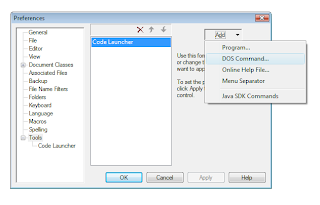
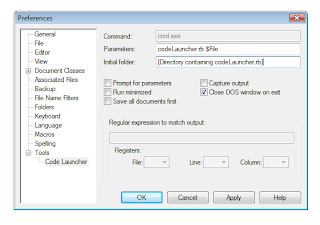
As a parting note, make sure whatever you're using to develop code with does code launching (maybe build/execute is a better term) and make sure you tailor fit it to your usage. Any decent development environment does... F5 is a common key to try. This is really basic funcitonality that makes a developer's life tons easier.
When I first started playing with lots of languages two years ago, I built a simple extensible ruby script for myself that compiles/executes source code. I called it "Code Launcher." I was using Textpad mostly at that time, so I set up Textpad to run codeLauncher on the active file with the press of "ctrl-1". "Code Launcher" has a different effect depending on the extension of the currently opened file. For example, I have HTML files open in firefox, ruby code run through a batch file (so it can have a guaranteed pause), and java code compiled and then run through a batch file. It's a simple idea, but it was also a really useful idea that I still use for quick coding. Here's the code for it... the nicest thing about it is that you can add and take from it freely and quickly. Build in special cases for yourself and whatnot.
- # This program was created for use in TextPad, so that I could add this
- # as a user tool which would do exactly what I wanted to the current open file.
- # This way, I didn't need a different user tool (and different key shortcut)
- # for every different kind of file. I did this in Ruby because I had been learning
- # it and liking it a lot at the time.
- #
- # The current problem with it is that there can not be more than one parameter.
- #
- # This program requires ruby 1.8 and AutoIt3 installed.
- # 03/20/07
- require 'win32ole'
- class CodeLauncher
- def initialize( fileParam, promptForParams = false, browser = "C:\\Program Files\\Mozilla Firefox\\firefox.exe" )
- params = ""
- exit if( !fileParam )
- #Get parameters if parameters are asked for
- if( promptForParams )
- require 'getParams.rb'
- app = FXApp.new("Get Parameters", "FXRuby")
- gp = GetParams.new(app)
- app.create
- app.run
- params = gp.param
- params = "\" \""+params+"\""
- end
- #parse out the file name
- if( fileParam =~ /(.*)\\(.*)\Z/ )
- fileDir = $1
- fileName = $2
- else
- exit
- end
- extension = $2 if( fileName =~ /(.*)\.(.*)\Z/ )
- #Special Cases (if any, for quick parameter testing)
- #Extension based general executions/compilations
- # Ruby, simpy open using a batch file (for the pause effect)
- if( extension == "rb" || extension == "rbw")
- runInCmd( fileDir, fileName, params, true )
- end
- # Java, compile the code an run in a batch file (for the pause effect)
- if( extension == "java" )
- runInCmd( fileDir, "javac\" \""+fileName, "", false )
- runInCmd( fileDir, "java\" \""+fileName.chomp(".java"), params, true )
- end
- # HTML, open the page in the browser
- if( extension == "html" )
- openInBrowser( browser, fileDir+"\\"+fileName )
- end
- # PHP, open the page in the browser
- if( extension == "php" )
- openInBrowser( browser, fileDir+"\\"+fileName )
- end
- # JSP, open the page in the browser
- if( extension == "jsp" )
- openInBrowser( browser, fileDir+"\\"+fileName )
- end
- # batch, simply open the batch file
- if( extension == "bat" )
- runInCmd( fileDir, fileName, params, false )
- end
- end
- #Run the code
- def runAutoIT3( cmdString )
- au3 = WIN32OLE.new("AutoItX3.Control")
- au3.opt("WinTextMatchMode", 2)
- au3.RunWait( cmdString )
- end
- def openInBrowser( browser, url )
- runAutoIT3( browser+" \""+url+"\"" )
- end
- def runInCmd( fileDir, command, params, leaveOpen )
- cmdString = ""
- if( leaveOpen )
- cmdString = "cmd.exe /c \"codeLauncherPause.bat \"" + fileDir + "\" \""+ command + params + "\"\""
- else
- cmdString = "cmd.exe /c \"cd " + fileDir + " && \"" + command + params + "\"\""
- end
- runAutoIT3( cmdString )
- end
- end
- if __FILE__ == $0
- #Get Parameters
- filename = ARGV[0]
- exit if( !filename )
- browser = ARGV[1]
- browser = "C:\\Program Files\\Mozilla Firefox\\firefox.exe" if( !browser )
- #execute
- CodeLauncher.new( filename, false, browser )
- exit
- end
- cd %1
- %2 %3
- pause
Click Apply, then expand Tools. For Parameters, type "codeLauncher.rb $File". For Initial Folder, enter the full path to the codeLauncher.rb script. Make sure "Close DOS window on exit" is checked. Then click OK. You're all set.


As a parting note, make sure whatever you're using to develop code with does code launching (maybe build/execute is a better term) and make sure you tailor fit it to your usage. Any decent development environment does... F5 is a common key to try. This is really basic funcitonality that makes a developer's life tons easier.
Monday, August 17, 2009
My Path to a Java/COM Bridge
Accurate as of July 2007.
A company my company was subcontracting to for a project told us that we could only use their hardware via COM objects. As a team, we didn't know very much about COM. Our application was entirely Java based. To us, their requirement implied that we needed to write JNI code, which frightened us because we've done -that- before.
Since we didn't know that much about COM, I was tasked to do a study on COM and a feasibility study for using COM objects from Java. I broke up the study into two parts. First, I figured out the basics of COM so that I could explain it to my team members. Second, I looked into and evaluated solutions to our problem. (SPOILER: We ended up going with J-Integra.)
The study was actually interesting and I think it's useful in general. Being able to use COM means that you have a lot of opportunity to interact with Windows applications. The ability to automate Microsoft Office applications is really convenient. So I'm going to share some of the results of my COM studies. First, I'll try to explain COM if you don't know much about it. Then I'll go into a comparison of Java/COM bridges.
I'm no expert on any of this, so don't let this be the end of your own studies. And I don't really go very deeply into either COM nor the Java-COM bridges. Also, I did quickly convert this from a private internal document to one for public use, so it might read funny in some places. So use this article more as a starting point.
If you want to learn, COM, listen
To teach COM, I'm going to reference the best of what I've read in an order I find very conducive to learning COM. I don't care too much about in-depthness to start off with: I build up to that when I feel I'm ready. This order will reflect that. So, let's start learning. Please note that I'm writing from the perspective of using Visual Studio 2005 and Windows XP Home:
1. http://www.codeproject.com/com/comintro.asp
This covers the COM interaction client side basics and is quite straightforward. This article (and the ones that will follow) reference ATL without describing what it is. The Active Template Library is simply a set of template-based C++ classes that simplify the programming of COM objects. ATL includes an object wizard that sets up the primary structure of COM Objects (including OLE Automation servers and ActiveX controls) very quickly with a minimum of hand coding. ATL allows creating smaller controls without support DLLs, so ATL is in a sense a lightweight alternative to Microsoft Foundation Classes (MFC) for the COM control environment.
2. http://www.codeproject.com/com/comintro2.asp
This covers making a COM server. Note that the client will not work unless you register the DLL you create/download. Do this by running "regsvr32 MsgBoxSvr.dll" in the command window.
3. http://www.microsoft.com/msj/1295/activex1295.aspx
COM distinguishes between three interface types: custom, dispatch, and dual interfaces. It's at least important to be familiar with the results of implementing the IDispatch interface. The IDispatch interface is the interface that exposes the OLE Automation protocol. The Automation (IDispatch) interface allows a client application to find out what properties and methods are supported by an object at run-time. It also provides the information necessary to invoke these properties and methods. Client applications do not need to be aware of the object members when they are compiled.
Those three are good enough on their own as a starter, but personally, I needed more reinforcement. And thus...
4. http://www.codeproject.com/com/rrcombasics.asp
Once again, COM basics. The grammar is bad, but it will help reinforce the basics.
5. http://www.codeproject.com/com/Inside_COM.asp
Another in-depth Introduction to COM (Server and Client). This one doesn't come with a code download.
6. http://www.codeproject.com/com/mmtopo_comid.asp
Some vocabulary definitions, once again meant to reinforce the basics.
An important aspect of my project at work was the need of being able to use callback methods (aka COM events) with COM. The next links go over this:
7. http://www.samspublishing.com/articles/article.asp?p=25922&seqNum=4&rl=1
This explains the concepts of COM events.
8. http://www.codeproject.com/com/connectionpoint.asp?df=100&forumid=14124&exp=0&select=1481687
An example/tutorial going over COM events. This code simply doesn't compile on Visual Studio 2005.
And since .Net is so important now, COM interoperability is an issue. These articles give some basics on that. A component available from .NET (written in C#) is a .NET component. It is different from a COM component because it requires a few of the DLLs from the .NET Framework in order to work.
9. http://www.codeproject.com/useritems/BuildCOMServersInDotNet.asp / http://www.codeproject.com/dotnet/cominterop.asp
General stuff
10. http://support.microsoft.com/kb/828736/en-us
More about writing a .NET component.
11. http://support.microsoft.com/kb/313891
How to sink managed C# events. I believe that this is the best way to providing callbacks for COM components in C#.
The above information should be enough knowledge to understand what's going on when I get to explaining the Java/COM bridges. I'm going to provide a few more links that go a little more in depth, but you can probably do without the extra information. If you really wanted to learn COM, even this won't be enough for you. You're going to have to buckle up and buy a book. But anyway...
12. http://www.codeproject.com/com/com_in_c1.asp
To understand how COM really works, you should do it from C. This is a series of 8 tutorials (com_in_c1 to com_in_c8) that will really let you know what's going on beyond all the Visual Studio gives you through its wizards and templates.
13. http://en.wikipedia.org/wiki/Component_Object_Model
Finally, for a refresher course, read the wikipedia page. The links are nice. You may want to wiki OLE Automation, ActiveX, ATL, and IDispatch while your out it. Reviewing by reading is always beneficial, even if not as beneficial as reviewing by doing.
14. http://www.microsoft.com/com/default.mspx
Lastly, the definitive source on COM. Good luck finding your way around there, lots of scattered information.
Java Couldn't Originally Make Connections Or Method Calls.... OM.
So, after all that reading, we're finally ready to see if we can figure out the problem. The goal is to use Java to work with COM objects. No matter how you look at it, this involves interacting with native code running outside the JVM. Web Services (Java to Soap/Soap to COM) is an option, but due to the poor performance and the limited COM interaction (no events and worse), it's not a very good option. It was possible to directly call COM objects using Microsoft's own JVM in Windows, but Microsoft dropped its Java support and who really wants to lock into a specific JVM anyways? Basically, the only real option there is right now is to use JNI, which is not very fun. Our best hope is that someone else has already written the JNI for us and wrapped it up in a not-as-unfun Java API. Fortunately, this need for COM interactions is common enough that people have done that, to varying extents.
There are open-source implementations and there are (costly) commercial solutions. I'm going to point out eleven solutions that I've come across. Please pay very close attention, these solutions are very different and support COM in different ways. Make sure the solution you choose will do what you want and that it's something you can bear to work in. I want to cover each of these solutions enough so that you know if it will work for you. I'll make some comments about using it (and it's pricing) so you can decide if you can work with it. When in doubt, don't take my word for it and go to a more reliable source, specifically the project's website. Things could have definitely changed since I wrote this.
BTW, I found this gem of a study. It was very helpful to me: http://www.mit.jyu.fi/minurmin/javacom/javacom_report.html
Comparisons
I hunted down as many solutions as I could find, but ended up only reviewing three of them. Feel free to do more research on your own.
Summaries
Hopeful #1: Jacob, http://danadler.com/jacob/ -> http://sourceforge.net/projects/jacob-project/
The potentially big problems with Jacob are its difficult error prone syntax, the lack of vtable call support, and inconsistencies in being able to access all the COM objects it should. The benefits are the cost (open source) and the maturity of the project.
Jacob uses a lot of Reflection and does its mappings based on strings provided. That means that typos are deadly and very difficult to track down because everything will compile right... it just won't work. The Jacob API is very verbose: a Jacob call can easily be twice as many lines of code as opposed to a VBScript call. Just another thing that makes debugging difficult. There is no built in way to create wrappers, but I read about a technique of modifying Jacob to use wrappers. I don't think it's worth the effort though.
Jacob has a lack of vtable call support, which means that it can not support custom interfaces. The COM objects must support the IDispatch interface (meaning ActiveX/OLE objects).
Another problem that I've encountered seems to be an incompatibility with certain COM objects. The calls won't work with certain objects (I've had very inconsistent experience with COM objects supporting callbacks in particular.) I highly suspect that it's due to badly formed COM Objects, but as of yet, I haven't tracked down the specific problem. It's not just my COM objects either: Callbacks won't work with Microsoft Office 2000, but will work with Microsoft Office 2003.
The benefits of using this solution is that it's open source and it's the most mature open source solution. It has decently active forums for minor issues and plenty of people have reported success using it. A commercial solution would be much, much better, but a Jacob solution will probably be manageable.
Hopeful #2: Jsegue, http://jsegue.sourceforge.net/
This solution seems pretty good. Unlike Jacob, it supports vtable calls. However, its API is far worse and the wrapper solution is no good (requires C++ code.)
Hopeful #3: J-Integra, http://j-integra.intrinsyc.com/
This seems to be the overall best tool I've found so far. In addition, its API is easier to use than the other solutions. It is a commercial product with all the disadvantages (cost) and benefits (support) associated.
For Java to COM support, J-Integra basically works by using their comtojava tool to create a Java Wrapper for a specified COM object. The resulting wrapper class and a J-Integra jar are imported by the class that needs COM to Java interaction. All COM calls are called as method calls of the wrapping class. The comtojava tool is easy to use and doesn't require much more than specifiying the COM class to wrap.
COM events (callbacks) are implemented using Java's standard listener registration technique. J-Integra connects with .NET components as well as COM components.
J-Integra provides support for many more Java/COM bridge needs. It allows Java to be called from COM, it allows native interfaces to be used for speed (as opposed to a native COM implementation). Probably the best things about J-Integra are its documentation and technical support. Overall, J-Integra seems to be the best way to go for a Java/COM bridge, as long as you can afford it.
Hopeful #4: com4j, https://com4j.dev.java.net/
Hopeful #5: EXJCom, http://www.ezjcom.com/purchase.html
Hopeful #6: JCOM, http://sourceforge.net/projects/jcom/
Open source and abandoned (in all but name.)
Hopeful #7: JNIWrapper, http://weblog.janek.org/Archive/2004/06/27/JNIWrapper-JavaDesktopInt.html
Hopeful #8: JaWin, http://jawinproject.sourceforge.net/jawin.html
Hopeful #9: Java2Com, http://www.nevaobject.com/default.htm
Hopeful #10: Bridge2Java, http://www.alphaworks.ibm.com/tech/bridge2java
Hopeful #11: DTJCB, http://www.alphaworks.ibm.com/tech/dtjcb
Hopeful #12: http://sourceforge.net/project/showfiles.php?group_id=174727
Not mature yet, but maybe later. It might be worth looking into later.
Comclusion
And that's all I came up with for my own study. Hopefully, it will help you in whatever you're doing.
A company my company was subcontracting to for a project told us that we could only use their hardware via COM objects. As a team, we didn't know very much about COM. Our application was entirely Java based. To us, their requirement implied that we needed to write JNI code, which frightened us because we've done -that- before.
Since we didn't know that much about COM, I was tasked to do a study on COM and a feasibility study for using COM objects from Java. I broke up the study into two parts. First, I figured out the basics of COM so that I could explain it to my team members. Second, I looked into and evaluated solutions to our problem. (SPOILER: We ended up going with J-Integra.)
The study was actually interesting and I think it's useful in general. Being able to use COM means that you have a lot of opportunity to interact with Windows applications. The ability to automate Microsoft Office applications is really convenient. So I'm going to share some of the results of my COM studies. First, I'll try to explain COM if you don't know much about it. Then I'll go into a comparison of Java/COM bridges.
I'm no expert on any of this, so don't let this be the end of your own studies. And I don't really go very deeply into either COM nor the Java-COM bridges. Also, I did quickly convert this from a private internal document to one for public use, so it might read funny in some places. So use this article more as a starting point.
If you want to learn, COM, listen
To teach COM, I'm going to reference the best of what I've read in an order I find very conducive to learning COM. I don't care too much about in-depthness to start off with: I build up to that when I feel I'm ready. This order will reflect that. So, let's start learning. Please note that I'm writing from the perspective of using Visual Studio 2005 and Windows XP Home:
1. http://www.codeproject.com/com/comintro.asp
This covers the COM interaction client side basics and is quite straightforward. This article (and the ones that will follow) reference ATL without describing what it is. The Active Template Library is simply a set of template-based C++ classes that simplify the programming of COM objects. ATL includes an object wizard that sets up the primary structure of COM Objects (including OLE Automation servers and ActiveX controls) very quickly with a minimum of hand coding. ATL allows creating smaller controls without support DLLs, so ATL is in a sense a lightweight alternative to Microsoft Foundation Classes (MFC) for the COM control environment.
2. http://www.codeproject.com/com/comintro2.asp
This covers making a COM server. Note that the client will not work unless you register the DLL you create/download. Do this by running "regsvr32 MsgBoxSvr.dll" in the command window.
3. http://www.microsoft.com/msj/1295/activex1295.aspx
COM distinguishes between three interface types: custom, dispatch, and dual interfaces. It's at least important to be familiar with the results of implementing the IDispatch interface. The IDispatch interface is the interface that exposes the OLE Automation protocol. The Automation (IDispatch) interface allows a client application to find out what properties and methods are supported by an object at run-time. It also provides the information necessary to invoke these properties and methods. Client applications do not need to be aware of the object members when they are compiled.
Those three are good enough on their own as a starter, but personally, I needed more reinforcement. And thus...
4. http://www.codeproject.com/com/rrcombasics.asp
Once again, COM basics. The grammar is bad, but it will help reinforce the basics.
5. http://www.codeproject.com/com/Inside_COM.asp
Another in-depth Introduction to COM (Server and Client). This one doesn't come with a code download.
6. http://www.codeproject.com/com/mmtopo_comid.asp
Some vocabulary definitions, once again meant to reinforce the basics.
An important aspect of my project at work was the need of being able to use callback methods (aka COM events) with COM. The next links go over this:
7. http://www.samspublishing.com/articles/article.asp?p=25922&seqNum=4&rl=1
This explains the concepts of COM events.
8. http://www.codeproject.com/com/connectionpoint.asp?df=100&forumid=14124&exp=0&select=1481687
An example/tutorial going over COM events. This code simply doesn't compile on Visual Studio 2005.
And since .Net is so important now, COM interoperability is an issue. These articles give some basics on that. A component available from .NET (written in C#) is a .NET component. It is different from a COM component because it requires a few of the DLLs from the .NET Framework in order to work.
9. http://www.codeproject.com/useritems/BuildCOMServersInDotNet.asp / http://www.codeproject.com/dotnet/cominterop.asp
General stuff
10. http://support.microsoft.com/kb/828736/en-us
More about writing a .NET component.
11. http://support.microsoft.com/kb/313891
How to sink managed C# events. I believe that this is the best way to providing callbacks for COM components in C#.
The above information should be enough knowledge to understand what's going on when I get to explaining the Java/COM bridges. I'm going to provide a few more links that go a little more in depth, but you can probably do without the extra information. If you really wanted to learn COM, even this won't be enough for you. You're going to have to buckle up and buy a book. But anyway...
12. http://www.codeproject.com/com/com_in_c1.asp
To understand how COM really works, you should do it from C. This is a series of 8 tutorials (com_in_c1 to com_in_c8) that will really let you know what's going on beyond all the Visual Studio gives you through its wizards and templates.
13. http://en.wikipedia.org/wiki/Component_Object_Model
Finally, for a refresher course, read the wikipedia page. The links are nice. You may want to wiki OLE Automation, ActiveX, ATL, and IDispatch while your out it. Reviewing by reading is always beneficial, even if not as beneficial as reviewing by doing.
14. http://www.microsoft.com/com/default.mspx
Lastly, the definitive source on COM. Good luck finding your way around there, lots of scattered information.
Java Couldn't Originally Make Connections Or Method Calls.... OM.
So, after all that reading, we're finally ready to see if we can figure out the problem. The goal is to use Java to work with COM objects. No matter how you look at it, this involves interacting with native code running outside the JVM. Web Services (Java to Soap/Soap to COM) is an option, but due to the poor performance and the limited COM interaction (no events and worse), it's not a very good option. It was possible to directly call COM objects using Microsoft's own JVM in Windows, but Microsoft dropped its Java support and who really wants to lock into a specific JVM anyways? Basically, the only real option there is right now is to use JNI, which is not very fun. Our best hope is that someone else has already written the JNI for us and wrapped it up in a not-as-unfun Java API. Fortunately, this need for COM interactions is common enough that people have done that, to varying extents.
There are open-source implementations and there are (costly) commercial solutions. I'm going to point out eleven solutions that I've come across. Please pay very close attention, these solutions are very different and support COM in different ways. Make sure the solution you choose will do what you want and that it's something you can bear to work in. I want to cover each of these solutions enough so that you know if it will work for you. I'll make some comments about using it (and it's pricing) so you can decide if you can work with it. When in doubt, don't take my word for it and go to a more reliable source, specifically the project's website. Things could have definitely changed since I wrote this.
BTW, I found this gem of a study. It was very helpful to me: http://www.mit.jyu.fi/minurmin/javacom/javacom_report.html
Comparisons
I hunted down as many solutions as I could find, but ended up only reviewing three of them. Feel free to do more research on your own.
Summaries
Hopeful #1: Jacob, http://danadler.com/jacob/ -> http://sourceforge.net/projects/jacob-project/
The potentially big problems with Jacob are its difficult error prone syntax, the lack of vtable call support, and inconsistencies in being able to access all the COM objects it should. The benefits are the cost (open source) and the maturity of the project.
Jacob uses a lot of Reflection and does its mappings based on strings provided. That means that typos are deadly and very difficult to track down because everything will compile right... it just won't work. The Jacob API is very verbose: a Jacob call can easily be twice as many lines of code as opposed to a VBScript call. Just another thing that makes debugging difficult. There is no built in way to create wrappers, but I read about a technique of modifying Jacob to use wrappers. I don't think it's worth the effort though.
Jacob has a lack of vtable call support, which means that it can not support custom interfaces. The COM objects must support the IDispatch interface (meaning ActiveX/OLE objects).
Another problem that I've encountered seems to be an incompatibility with certain COM objects. The calls won't work with certain objects (I've had very inconsistent experience with COM objects supporting callbacks in particular.) I highly suspect that it's due to badly formed COM Objects, but as of yet, I haven't tracked down the specific problem. It's not just my COM objects either: Callbacks won't work with Microsoft Office 2000, but will work with Microsoft Office 2003.
The benefits of using this solution is that it's open source and it's the most mature open source solution. It has decently active forums for minor issues and plenty of people have reported success using it. A commercial solution would be much, much better, but a Jacob solution will probably be manageable.
Hopeful #2: Jsegue, http://jsegue.sourceforge.net/
This solution seems pretty good. Unlike Jacob, it supports vtable calls. However, its API is far worse and the wrapper solution is no good (requires C++ code.)
Hopeful #3: J-Integra, http://j-integra.intrinsyc.com/
This seems to be the overall best tool I've found so far. In addition, its API is easier to use than the other solutions. It is a commercial product with all the disadvantages (cost) and benefits (support) associated.
For Java to COM support, J-Integra basically works by using their comtojava tool to create a Java Wrapper for a specified COM object. The resulting wrapper class and a J-Integra jar are imported by the class that needs COM to Java interaction. All COM calls are called as method calls of the wrapping class. The comtojava tool is easy to use and doesn't require much more than specifiying the COM class to wrap.
COM events (callbacks) are implemented using Java's standard listener registration technique. J-Integra connects with .NET components as well as COM components.
J-Integra provides support for many more Java/COM bridge needs. It allows Java to be called from COM, it allows native interfaces to be used for speed (as opposed to a native COM implementation). Probably the best things about J-Integra are its documentation and technical support. Overall, J-Integra seems to be the best way to go for a Java/COM bridge, as long as you can afford it.
Hopeful #4: com4j, https://com4j.dev.java.net/
Hopeful #5: EXJCom, http://www.ezjcom.com/purchase.html
Hopeful #6: JCOM, http://sourceforge.net/projects/jcom/
Open source and abandoned (in all but name.)
Hopeful #7: JNIWrapper, http://weblog.janek.org/Archive/2004/06/27/JNIWrapper-JavaDesktopInt.html
Hopeful #8: JaWin, http://jawinproject.sourceforge.net/jawin.html
Hopeful #9: Java2Com, http://www.nevaobject.com/default.htm
Hopeful #10: Bridge2Java, http://www.alphaworks.ibm.com/tech/bridge2java
Hopeful #11: DTJCB, http://www.alphaworks.ibm.com/tech/dtjcb
Hopeful #12: http://sourceforge.net/project/showfiles.php?group_id=174727
Not mature yet, but maybe later. It might be worth looking into later.
Comclusion
And that's all I came up with for my own study. Hopefully, it will help you in whatever you're doing.
Friday, July 31, 2009
Replacing Explorer Navigation
Requires: Windows 2000/XP, AutoIt3, and PS Hot Launch.
In internet explorer, you can use either backspace or alt-left to go to the previous page; the state is saved so that all selected items are still selected and all text in forms is still entered. In windows explorer (y'know, what you Windows users use to traverse your systems) for XP the same thing seems to happen. However, this is not the case.
Backspace actually corresponds to "Move Up One Directory" and Alt-left corresponds to "Back." If you are used to using Backspace to go back on web pages, I would suggest getting used to Alt-Left. Alt-Forward will move you forward (so it makes more sense) and making backspace go back may lead to problems will filling out web forms. I mapped Alt-Up to move up a directory and Alt-Down to close the active window, using AutoIt scripts and PS Hot Key. It took a while to wean off using backspace, but Alt-[Direction] actually makes more sense, is more unlikely to cause errors, and works the same on all windows computers. And so it's the better alternative than remapping keys.
(Haha, I've lied. I ended up switching all my Alt-[Direction] shortcuts with Ctrl-[Direction], unless there's a program conflict. I used AutoIt scripts mapped to key combinations via PS Hot Keys. Ctrl instead of Alt made it a lot easier to use the commands one handed and I don't use other people's machines all that often anyway.)
In internet explorer, you can use either backspace or alt-left to go to the previous page; the state is saved so that all selected items are still selected and all text in forms is still entered. In windows explorer (y'know, what you Windows users use to traverse your systems) for XP the same thing seems to happen. However, this is not the case.
Backspace actually corresponds to "Move Up One Directory" and Alt-left corresponds to "Back." If you are used to using Backspace to go back on web pages, I would suggest getting used to Alt-Left. Alt-Forward will move you forward (so it makes more sense) and making backspace go back may lead to problems will filling out web forms. I mapped Alt-Up to move up a directory and Alt-Down to close the active window, using AutoIt scripts and PS Hot Key. It took a while to wean off using backspace, but Alt-[Direction] actually makes more sense, is more unlikely to cause errors, and works the same on all windows computers. And so it's the better alternative than remapping keys.
(Haha, I've lied. I ended up switching all my Alt-[Direction] shortcuts with Ctrl-[Direction], unless there's a program conflict. I used AutoIt scripts mapped to key combinations via PS Hot Keys. Ctrl instead of Alt made it a lot easier to use the commands one handed and I don't use other people's machines all that often anyway.)
Tuesday, June 30, 2009
Removing and Ejecting Disks
Requires: Windows XP Professional
So, you plug in a USB drive, do your stuff, and then you want to take it out. Pretty common today, right? So you've got to go to your taskbar, right click that "Safely Remove Drive" icon, and so on. I thought it was kind of annoying, so I looked for a way to do this without having to use the mouse (and that was free.) And I eventually found it at this site. http://www.uwe-sieber.de/usbstick_e.html His english isn't too great, but he's not a native speaker and it's not -that- hard to understand.
As he says, there are several tools that claim to do this. Don't use them because they don't work correctly. For example, in XP, DevEject fails to let you know if the operation failed. If you google "safely remove usb xp command line" you'll get articles talking about the devcon tool. Don't use that either because devcon causes the device in question to be uninstalled. This is not desired and does NOT cause the device to be "unplugged." So use the tools from http://www.uwe-sieber.de/usbstick_e.html.
So yay, now you can do usb stuff from command line. Sometimes you'll get a failure message. Unless you accidentally specified a non-removable drive, the most likely reason for this is that Windows has "locked" some of the files on the drive. So annoying, especially since you'll not know how to unlock them, since you probably already closed all he programs that were using it. If that's the case, use this program, "Unlocker", to free up those files. It works like a charm and appears in the right click menu for easy use. Download Unlocker: http://ccollomb.free.fr/unlocker/
So, you plug in a USB drive, do your stuff, and then you want to take it out. Pretty common today, right? So you've got to go to your taskbar, right click that "Safely Remove Drive" icon, and so on. I thought it was kind of annoying, so I looked for a way to do this without having to use the mouse (and that was free.) And I eventually found it at this site. http://www.uwe-sieber.de/usbstick_e.html His english isn't too great, but he's not a native speaker and it's not -that- hard to understand.
As he says, there are several tools that claim to do this. Don't use them because they don't work correctly. For example, in XP, DevEject fails to let you know if the operation failed. If you google "safely remove usb xp command line" you'll get articles talking about the devcon tool. Don't use that either because devcon causes the device in question to be uninstalled. This is not desired and does NOT cause the device to be "unplugged." So use the tools from http://www.uwe-sieber.de/usbstick_e.html.
So yay, now you can do usb stuff from command line. Sometimes you'll get a failure message. Unless you accidentally specified a non-removable drive, the most likely reason for this is that Windows has "locked" some of the files on the drive. So annoying, especially since you'll not know how to unlock them, since you probably already closed all he programs that were using it. If that's the case, use this program, "Unlocker", to free up those files. It works like a charm and appears in the right click menu for easy use. Download Unlocker: http://ccollomb.free.fr/unlocker/
Sunday, May 24, 2009
Remapping keys for closing windows
Requires: Windows 2000/XP, AutoIt3, and PS Hot Launch.
Really simple tweak today. In Windows, the shortcut to close a window is "Alt-f4." That annoys me. I mean, it takes two hands, the keys are far apart, blah blah blah... Really, this is one of those things that I probably should have just gotten used to, but... I didn't. Instead, I found a way to use "ctrl-down", which works well for me since I'm using "ctrl-(other arrow keys)" for navigating windows explorer. I find it easier and faster to use the right ctrl with the arrow keys for quick navigation. My solution uses an Auto It script and PS Hot Launch.
The AutoIt script is really simple:
WinClose( "" )
It'll close the program that currently has focus. Simply save that code and map it (using PS Hot Launch) to "ctrl-down." You can use PS Hot Launch to to make up a lot of your own commands and tweak all your keyboard shortcuts without actually changing the keys. The only thing to be careful about is not ruining pre-existing shortcuts.
As I was writing this, I realized the title could be misread to mean closing the Windows Operating System. In case that mistake lead you to read this, I'll give you a tip to close that from Command Line. Simply type in:
shutdown -s -f -t 0
This'll shut down the computer, not give you program warnings, and do it without a delay. Do "shutdown -?" for more options. Cinchy. You can put the code in a batch file and then map it to a key or put it on your desktop and click on it when you want to shutdown. I think it's a better method than the click through GUI.
Really simple tweak today. In Windows, the shortcut to close a window is "Alt-f4." That annoys me. I mean, it takes two hands, the keys are far apart, blah blah blah... Really, this is one of those things that I probably should have just gotten used to, but... I didn't. Instead, I found a way to use "ctrl-down", which works well for me since I'm using "ctrl-(other arrow keys)" for navigating windows explorer. I find it easier and faster to use the right ctrl with the arrow keys for quick navigation. My solution uses an Auto It script and PS Hot Launch.
The AutoIt script is really simple:
WinClose( "" )
It'll close the program that currently has focus. Simply save that code and map it (using PS Hot Launch) to "ctrl-down." You can use PS Hot Launch to to make up a lot of your own commands and tweak all your keyboard shortcuts without actually changing the keys. The only thing to be careful about is not ruining pre-existing shortcuts.
As I was writing this, I realized the title could be misread to mean closing the Windows Operating System. In case that mistake lead you to read this, I'll give you a tip to close that from Command Line. Simply type in:
shutdown -s -f -t 0
This'll shut down the computer, not give you program warnings, and do it without a delay. Do "shutdown -?" for more options. Cinchy. You can put the code in a batch file and then map it to a key or put it on your desktop and click on it when you want to shutdown. I think it's a better method than the click through GUI.
Subscribe to:
Posts (Atom)